


For Indian tax professionals, automating invoice photo to Tally is now essential to handle GST workloads, seasonal spikes, and client expectations for faster reporting.
Instead of typing voucher data manually from invoice images, you can rely on AI-powered image invoice processing, and OCR data extraction to create clean, consistent entries in Tally with minimal human effort.
This approach reduces data entry time and errors while improving reconciliation accuracy, audit readiness, and practice scalability across multiple clients and branches.
Why Invoice Photo to Tally Automation Matters in 2026
Manual data entry from invoice photos, PDFs, and scanned documents is slow, error-prone, and difficult to scale when you manage hundreds or thousands of invoices per month.
As more clients share documents via mobile devices, WhatsApp, and email attachments, maintaining data quality in Tally becomes challenging without a structured automation workflow.
Automated invoice photo-to-Tally systems convert unstructured images into structured accounting data, improving accuracy for GSTINs, invoice numbers, taxable values, and tax components while freeing your team to focus on review and advisory work.
Key Concepts: Image Invoice Processing and OCR Data Extraction
Modern invoice automation relies on OCR data extraction, which can read text from invoice photos and scanned PDFs, detect key fields, and assign them to the correct columns and ledgers.
Image invoice processing goes beyond simple text capture by understanding context, such as supplier vs customer details, tax breakup, line items, and rounding differences, which are critical for accurate GST and financial reporting.
When combined with photo-to-Excel conversion, the extracted data can be transformed into structured tables that are easy to validate, review, and push into Tally as vouchers.
This end-to-end flow allows tax professionals to maintain control while significantly reducing keyboard work.
Typical Workflow: From Invoice Photo to Tally
A mature invoice photo to Tally workflow usually follows a predictable sequence that can be standardized across your practice:
- Document capture: Clients share invoice photos, PDFs, and scanned documents through WhatsApp, email, shared folders, or portals using mobile invoice capture.
- Centralized upload: Your team uploads these documents to an automation system that supports image invoice processing, OCR data extraction, and photo-to-Excel conversion.
- Data extraction: The system reads each invoice, identifies key fields (names, GSTINs, dates, invoice numbers, line items, tax rates, totals), and structures them into voucher-ready data.
- Business rules: Firm-level rules and master mappings determine ledger names, tax ledgers, item categories, and narration formats in Tally.
- Review and approval: Staff review exceptions, correct any discrepancies, and approve the final set of vouchers.
- Tally posting: Approved entries are synced or imported directly into Tally, keeping the books consistent and up to date.
This structured approach makes it easier to manage high-volume batches during GSTR-1, GSTR-3B, and year-end closings without overburdening your team.
How Vyapar TaxOne Automates Invoice Photos to Tally
Vyapar TaxOne is designed specifically to help Indian tax and accounting professionals automate repetitive data entry tasks, including converting invoice photos to Tally.
It focuses on transforming unorganized invoice photos, PDFs, and Excel files into accurate, Tally-ready vouchers through a guided, review-friendly process.
With Vyapar TaxOne, you can:
- Upload in bulk: Upload multiple invoice photos, scanned purchase bills, and other documents in one batch, instead of handling them one by one.
- Automate extraction: Uses image invoice processing and OCR data extraction to automatically read details such as supplier name, invoice number, invoice date, taxable value, GST components, and total.
- Apply firm rules: Use firm-specific rules for ledger selection, tax treatment, and narration styles to ensure Tally data remains consistent regardless of who is operating the system.
- Sync to Tally: Push reviewed and approved vouchers to Tally with just a few clicks, reducing manual typing and the risk of duplication.
This makes Vyapar TaxOne particularly suitable for CA firms, tax consultants, and accounting service providers who handle data for multiple GST registrations and industries.
Step-by-Step: Using Vyapar TaxOne for Batch Processing
When dealing with hundreds of invoices, a batch-processing mindset is essential. Below is a practical, repeatable process you can adapt inside your firm using Vyapar TaxOne.
1. Collect and Organize Source Documents
- Ask clients to send invoices via WhatsApp, email, or shared folders in clear, readable formats.
- Set basic guidelines for clients on how to take invoice photos (full frame, good lighting, no blur) to improve OCR accuracy.
- Categorize documents by client, GSTIN, period (month/quarter), and type (purchase, sales, expenses, credit notes, etc.).
2. Bulk Upload Invoice Photos and PDFs
- Use the bulk upload option in Vyapar TaxOne to import multiple files at once instead of uploading invoices one by one.
- Include different formats, JPG/PNG photos, scanned PDFs, and existing Excel files, so your team can manage all sources within one system.
- Ensure clear naming or folder structure so that later reviews can be filtered by client and period.
3. Run Image Invoice Processing and OCR Data Extraction
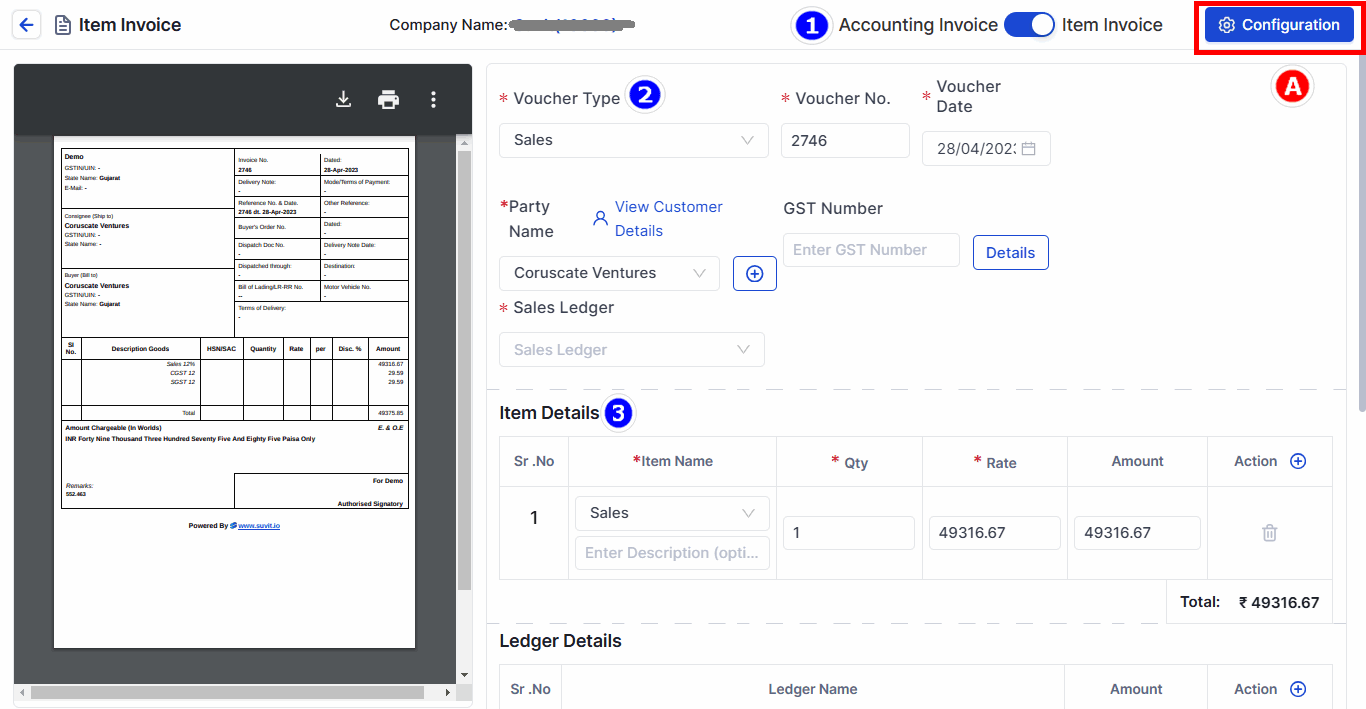
- Allow Vyapar TaxOne to process each file and identify key fields, including party details, invoice particulars, line items, GST slabs, and totals.
- For each invoice, the system generates structured data similar to a photo-to-Excel conversion, which can be reviewed side-by-side with the original document.
- Pay attention to invoices with unusual layouts, complex discounts, or handwritten elements, as they might require extra review.
4. Apply Mapping Rules and Ledger Logic
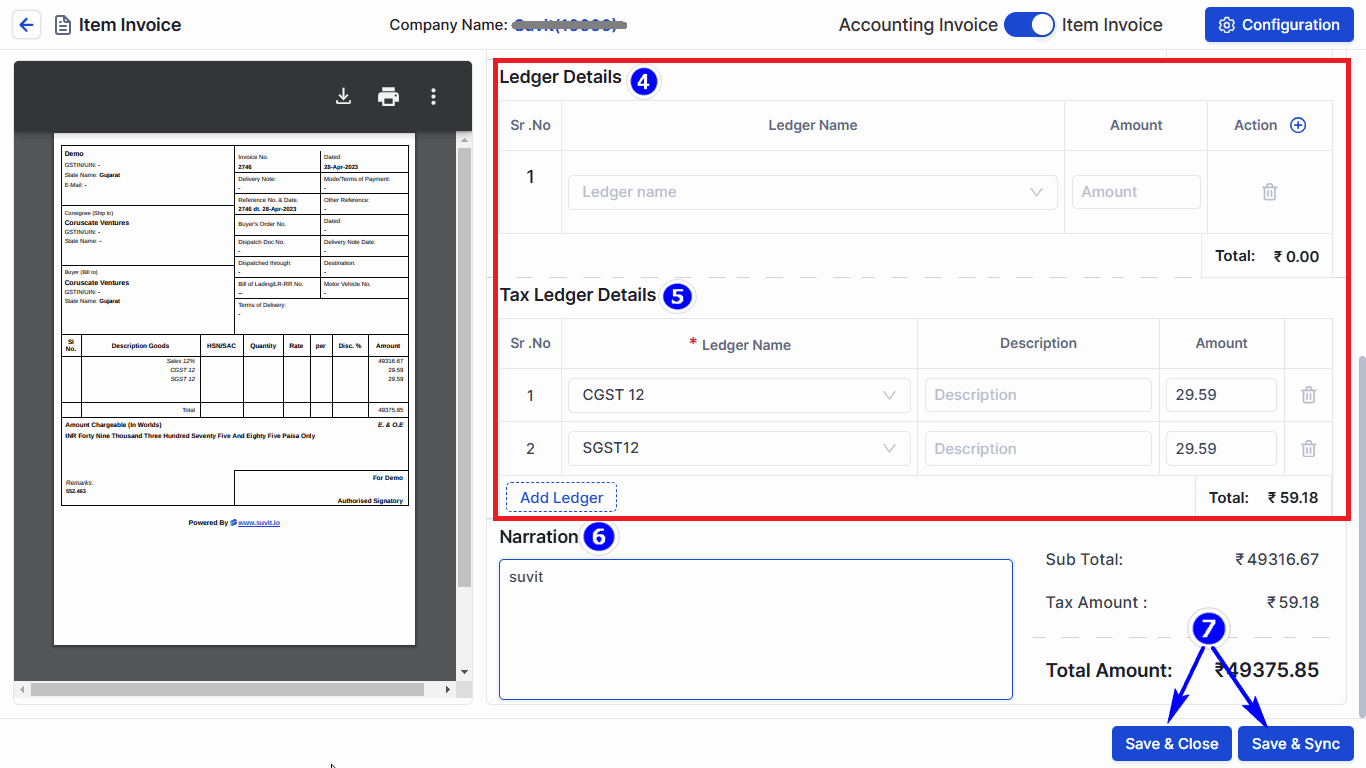
- Configure master mappings so that recurring vendors, customers, and expense categories automatically link to the correct ledgers in Tally.
- Define rules for tax ledgers (e.g., mapping CGST, SGST, and IGST based on place of supply and registration) to ensure GST compliance.
- Use standardized narrations that clearly reference invoice number, date, and supplier details to simplify audit trails.
5. Review, Validate, and Approve Batches
- Work batch-wise, reviewing extracted data on a screen that displays both the original invoice and the interpreted fields.
- Correct any OCR misreads (for example, confusion between "0" and "O", or minor mismatches in totals due to rounding).
- Approve vouchers in groups once you are satisfied with the accuracy, and mark exceptions for deeper investigation.
6. Sync Approved Entries to Tally
- Push approved vouchers to Tally in a single flow, ensuring that voucher types, numbering, and ledgers match your existing Tally structure.
- Run basic checks in Tally, such as trial balance, ledger summaries, and tax reports, to ensure imported data aligns with expectations.
- Maintain a clear linkage so that any Tally entry can be traced back to the source invoice photo or file when needed.
Handling High-Volume Batches During Peak Periods
During peak filing periods, such as the due dates for GSTR-1 and GSTR-3B, or year-end closing for FY 2025–26, your team must handle significantly larger document batches. An optimized invoice photo to Tally process helps you absorb this load without burnout or quality compromise.
You can:
- Prioritize intelligently: prioritize batches by deadline and client category (e.g., monthly vs quarterly return filers).
- Specialized teams: Assign dedicated team members to specific clients or clusters so that they become familiar with recurring patterns and exceptions.
- Track progress: Use dashboards or internal trackers to monitor how many invoices are fully automated, how many need manual checks, and where delays are forming.
This ensures you always know the status of each client's books and can communicate confidently on filing progress.
Best Practices for Working with Mobile Invoice Capture
Since many SMEs prefer sending invoices via mobile and messaging apps, your process must be resilient to varied image quality and formats.
To make image invoice processing more reliable:
- Request that clients capture the entire invoice in a single frame, with readable text and minimal glare.
- Encourage clients to avoid folded, crumpled, or cut images, as these can make OCR data extraction difficult.
- When recurring problems arise with specific clients, share a short, visual guide or checklist to help them capture invoice photos effectively.
Over time, educating your clients improves automation accuracy and reduces the manual corrections your team must perform.
Scaling Your Practice with Automation
When executed properly, invoice photo-to-Tally automation becomes a strategic asset rather than just a time-saving tool. By standardizing your workflows around image invoice processing, OCR data extraction, and photo to Excel conversion, you can serve more clients with the same or smaller team.
In practical terms, this means:
- Faster onboarding of new clients, since your process does not depend heavily on manual data entry capacity.
- Ability to offer higher-value services like analytics, tax planning, and advisory work rather than spending most hours on typing vouchers.
- Better visibility into work-in-progress across the firm, which helps you allocate staff intelligently and meet deadlines consistently.
Toward an Automation-Ready Tax Practice
In 2026, the firms that thrive will be those that treat automation as a core capability rather than a side experiment.
By building a robust invoice photo-to-Tally framework, you create a resilient foundation for GST compliance, bookkeeping, and reporting.
Vyapar TaxOne fits into this vision as a dedicated pre-accounting and automation platform that converts invoice photos and other unstructured documents into accurate Tally entries at scale.
When combined with disciplined processes, clear client communication, and strong internal controls, it can help you deliver faster, more accurate, and more dependable services to your clients, while protecting your team from the constant pressure of manual data entry.
FAQs
Q1. What does "invoice photo to Tally" mean?
It refers to converting invoice images (photos, scans, PDFs) into structured accounting data that can be reviewed and posted directly into Tally, without manual voucher typing.
Q2. How does Vyapar TaxOne help with the invoice photo to Tally?
Vyapar TaxOne uses image-based invoice processing and OCR to read invoice photos in bulk, apply your ledger and GST rules, and then sync approved entries into Tally.
Q3. Can I process invoices in batches during peak GST periods?
Yes, you can upload and process multiple invoice photos and PDFs in batches, review exceptions, and then push large volumes of entries to Tally in one workflow.
Q4. What types of documents can be automated besides invoice photos?
In addition to invoice photos, you can typically automate scanned PDFs, emailed bills, and structured files like Excel for purchases, sales, and expense entries.
Q5. Do I still need to review entries before syncing to Tally?
Yes, a human review layer is recommended to validate key fields, GST amounts, and ledger mapping before final approval and sync to maintain accuracy and compliance.


